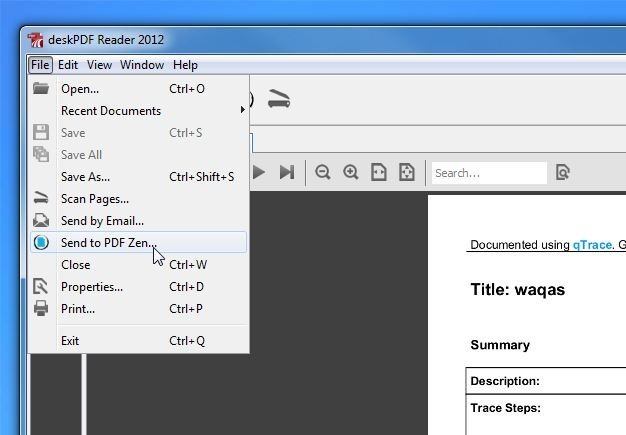
We have covered plenty of PDF editors for desktop, web and mobile platforms like PDFzen for Windows, Web, iOS and Mac OS X that allowed editing and sharing PDF files in a collaborative manner. PDF Mod was a another comprehensive option for Linux. In a nutshell, there are many PDF tools out there, all offering their own feature-sets and functionality. Should you be looking for another one to try out, give PDFCool PDF Editor a go. It’s a free PDF viewer and editor for Windows that bundles a variety of PDF-related tools in the package.
You can edit existing PDF files, create new ones from scratch, or extract certain elements like images and text from existing ones. Likewise, you can insert your own images into the document currently loaded in PDFCool. In addition, it allows you to convert PDF files to various image and text formats and vice versa.
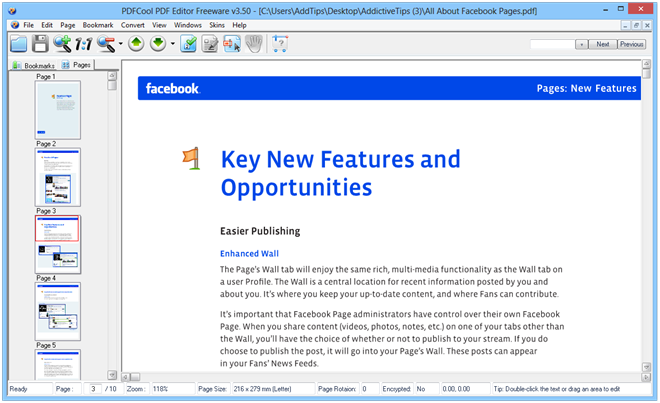
Unfortunately, the application comes packaged with bloatware in form of in-app advertisement for the developer’s other tools, which can continuously nag your workflow. This is one of the major annoyances I faced during its testing. The interface carries a toolbar at the top that lets you navigate the document and zoom in and out of it.
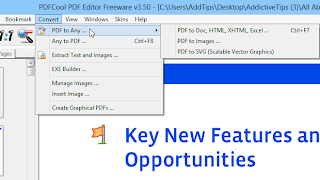
The menu bar further extends the tool’s functionality by providing features like bookmarking and document conversion. The Convert menu is one of the most promising features of the app, as it lets you access many PDF-related tools from one place. For example, ‘PDF to Any’ allows you to convert a PDF file to a host of formats like DOC, HTML, PNG, JPEG, RTF, TXT, XLS, PPT, POT, EMF, WMF, SVG – in short, whatever format you might need to convert a PDF file into, PDFCool has you covered. It also contains an EXE builder that can a convert PDF file to an executable one for viewing on any Windows computer regardless of whether it has a PDF viewer installed or not. And if your PDF files contains graphical elements like objects and images, you can make use of the ‘Create Graphical PDFs’ option.
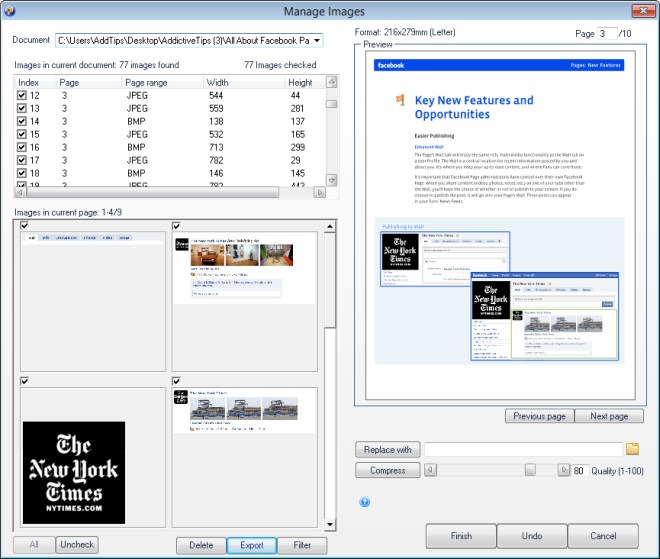
Manage Images is another nifty little feature that instantly extracts user-specific images from selected pages in a document. This feature opens up in it’s own window and exports the extracted image files to a user-defined directory. Apart from images, PDFCool PDF Editor also makes it possible to extract selective pages from a document. The Page menu provides different options for trimming, merging, copying and duplicating pages.
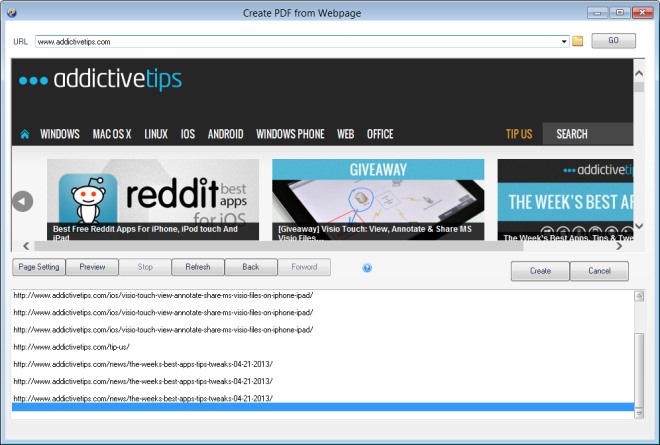
One more nifty feature of the app is its ability to convert web pages into PDF, and even allowing you to annotate them before you do so! Just select ‘Create PDF from Webpage’ in the File menu to launch this window (that can be considered a mini browser of sorts), and enter the URL of the page that you want to convert. The application fetches all the required information from the page and lets you export it into the main editing workspace, from where you can add annotations and convert the page according to your preferences.
Although it’s plagued with some annoying nagware that may incessantly disrupt your workflow, the sheer number of PDF-related features that it packs make PDFCool PDF Editor an interesting application of its kind. It works on Windows XP, Windows Vista, Windows 7 and Windows 8. Both 32-bit and 64-bit OS editions are supported.
Download PDFCool PDF Editor
You can edit existing PDF files, create new ones from scratch, or extract certain elements like images and text from existing ones. Likewise, you can insert your own images into the document currently loaded in PDFCool. In addition, it allows you to convert PDF files to various image and text formats and vice versa.
Unfortunately, the application comes packaged with bloatware in form of in-app advertisement for the developer’s other tools, which can continuously nag your workflow. This is one of the major annoyances I faced during its testing. The interface carries a toolbar at the top that lets you navigate the document and zoom in and out of it.
The menu bar further extends the tool’s functionality by providing features like bookmarking and document conversion. The Convert menu is one of the most promising features of the app, as it lets you access many PDF-related tools from one place. For example, ‘PDF to Any’ allows you to convert a PDF file to a host of formats like DOC, HTML, PNG, JPEG, RTF, TXT, XLS, PPT, POT, EMF, WMF, SVG – in short, whatever format you might need to convert a PDF file into, PDFCool has you covered. It also contains an EXE builder that can a convert PDF file to an executable one for viewing on any Windows computer regardless of whether it has a PDF viewer installed or not. And if your PDF files contains graphical elements like objects and images, you can make use of the ‘Create Graphical PDFs’ option.
Manage Images is another nifty little feature that instantly extracts user-specific images from selected pages in a document. This feature opens up in it’s own window and exports the extracted image files to a user-defined directory. Apart from images, PDFCool PDF Editor also makes it possible to extract selective pages from a document. The Page menu provides different options for trimming, merging, copying and duplicating pages.
One more nifty feature of the app is its ability to convert web pages into PDF, and even allowing you to annotate them before you do so! Just select ‘Create PDF from Webpage’ in the File menu to launch this window (that can be considered a mini browser of sorts), and enter the URL of the page that you want to convert. The application fetches all the required information from the page and lets you export it into the main editing workspace, from where you can add annotations and convert the page according to your preferences.
Although it’s plagued with some annoying nagware that may incessantly disrupt your workflow, the sheer number of PDF-related features that it packs make PDFCool PDF Editor an interesting application of its kind. It works on Windows XP, Windows Vista, Windows 7 and Windows 8. Both 32-bit and 64-bit OS editions are supported.
Download PDFCool PDF Editor